
ApOkwARG
Members
-
Joined
-
Last visited
-
Think you should add "destructable environments" to the list I also hope they keep the original voice acting intact and many of the bits that made Jagged Alliance. Press R for Rocket Launcher!
-
I actually have X-COM running quite decently on my Sony PSP which runs at only 333mhz. PC hardware and operating systems are designed to execute and run a plethora of tasks where a mere game console is designed to dedicate it's resources only to gaming. This is why console emulation on PC often requires a lot of processing power, even though the game console is quite "weak" on paper. This is why it could work on the iPhone/iPad. Did you know it can run Amiga games at full speed? Eventually the performance all depends on the quality of the code/port and the understanding of the platform it is running on Hopefully the developer won't give up easily and keep the updates flowing. Projects like these often die fast.
-
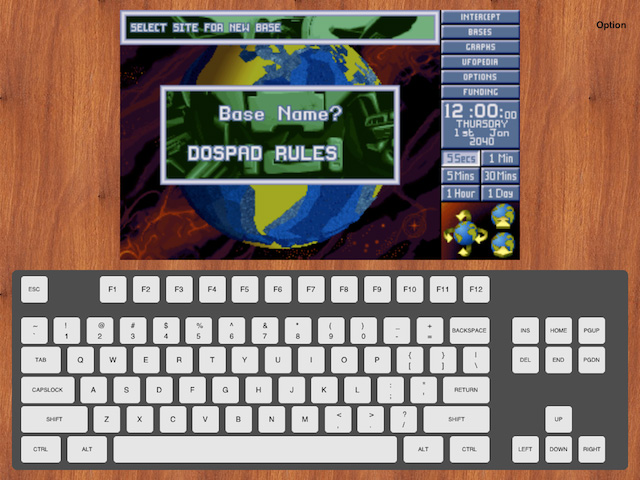
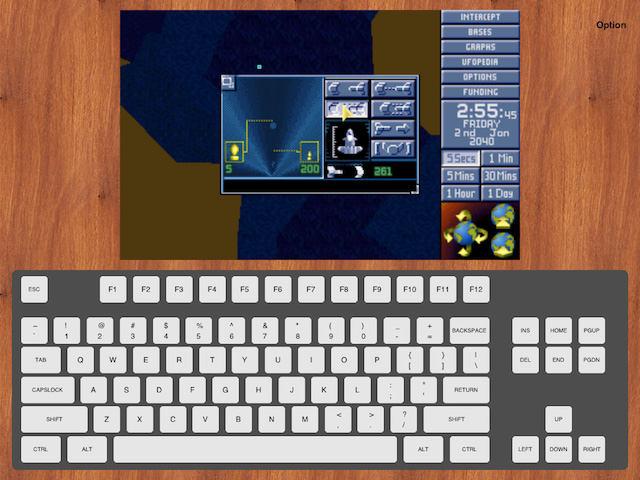
It recently came to my attention that DOSbox has found it's way to the iPhone and iPad. I'm sure many XCommies will automatically realize what this means. Keep in mind however that this port is still in a early development stage. As shown in the screenshots, it is capable of running TFTD but i'm sure UFO will also. Currently the performance is quite lackluster but this will hopefully be fixed in time. This app only runs on Jailbroken devices. Source: Developer website Thread on touchArcade